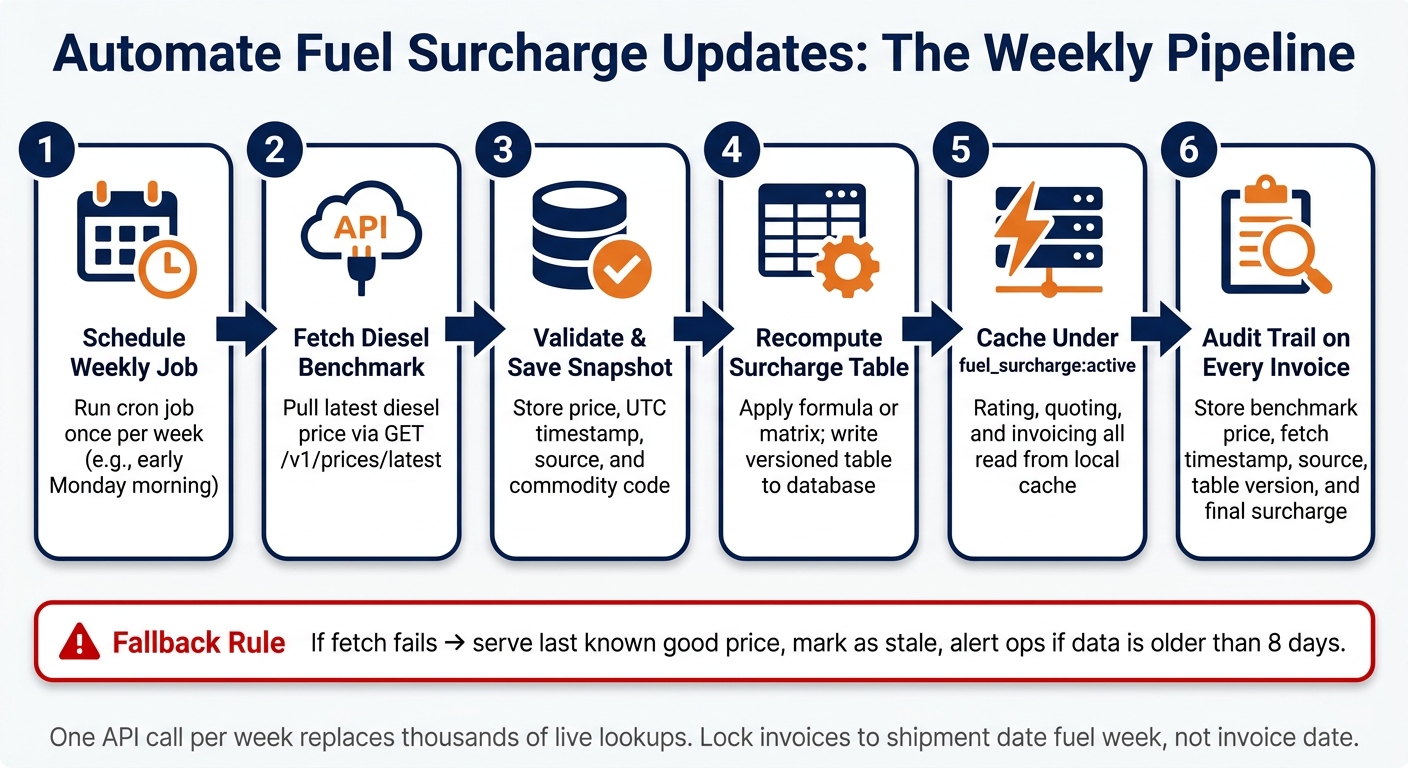
You do not need to update fuel surcharge tables by hand every week. I’d set up one scheduled job that pulls a diesel price once a week, stores it, rebuilds the surcharge table, and lets rating and billing read from that local table.
Here’s the whole process in plain English:
- Fetch one diesel benchmark each week
- Store the price, source, and UTC timestamp
- Apply your surcharge formula or matrix in the server
- Write the new table to your database or cache
- Use shipment date, not invoice date, to pick the fuel week
- Keep using the last known good table if the API call fails
- Log the exact price, table version, and snapshot ID on every invoice
That setup can replace thousands of outside lookups with one API call per week per environment. For more on technical implementation, see our API integration FAQ. It also keeps quote and invoice flows fast because your TMS or ERP reads local data, not a live outside service, during rating.
A few details matter most:
- I’d lock each invoice to the shipment date’s fuel week
- I’d store fields like benchmark price, fetch time, source, and table version
- I’d mark data as stale if the weekly pull fails
- I’d alert the team if the last good price is more than 8 days old
In short: define the rule once, fetch weekly, rebuild once, serve locally, and keep an audit trail on every charge.
How to Automate Fuel Surcharge Updates in Your TMS or ERP
Express TMS Fuel Management System
sbb-itb-a92d0a3
Define your fuel surcharge logic in the TMS or ERP
Set your surcharge rules before you run the weekly job. The job should write one clean record each week, not try to figure out business rules on the fly. That gives your automation one place to write and your rating logic one place to read.
Map your surcharge table to system fields
Each weekly price snapshot should map to these fields:
| Field | Data Type | Example Value | Purpose |
|---|---|---|---|
commodity_code |
String | DIESEL_RETAIL_USD |
Identifies the benchmark being used |
price_usd |
Decimal | 3.68 |
The benchmark price per gallon |
currency |
String | USD |
Currency for the benchmark |
unit_of_measure |
String | gallon |
Unit used for the benchmark |
source |
String | eia_api |
Where the price came from |
created_at |
DateTime (UTC) | 2026-07-09T14:00:00Z |
When the price was recorded |
effective_date |
Date | 07/09/2026 |
The date your system treats this price as active |
Use DIESEL_RETAIL_USD for weekly surcharge programs. Save spot-price codes for contracts that explicitly call for them. In most cases, a national benchmark is the right default, though maritime shippers may require VLSFO bunker oil pricing. Add regional or state overrides only when a contract says you need them.
Once those fields are in place, the next step is simple: decide which snapshot each transaction should use.
Decide when the surcharge is applied
At invoice time, lock the surcharge to the shipment date’s fuel week, not the invoice date. That one rule prevents a lot of billing mess.
If a shipment moved before a new weekly price was loaded, billing should pull the historical snapshot tied to that shipment date. At quote time, use the active table as your estimate.
Also store source_snapshot_id on each rating event. That way, every invoice points back to one exact price record.
With that rule layer set, the weekly fetch job can just populate the active table.
Fetch the latest price once per week and store it
Once your surcharge rules are set and your field schema is in place, the weekly fetch job has one job: get a new price, check it, and save it. That saved snapshot then feeds the surcharge table rebuild used for rating and billing.
Schedule a weekly cron job and call the API
Run the cron job once a week at a fixed time, like early Monday morning in local server time.
This request fills the internal price snapshot that your surcharge table uses:
GET https://api.oilpriceapi.com/v1/prices/latest
Authorization: Token YOUR_API_KEY
Before you write the response to your database, check the returned fields against the official API documentation.
Save the price, timestamp, and source reference
If the response checks out, store the price, the UTC fetch timestamp, and a source reference. That gives you a clear audit trail and helps with invoice traceability. This snapshot then becomes the source input for the weekly surcharge rebuild.
If you want a hands-on example, the Python tutorial and Node.js tutorial show the same request-and-save pattern against this endpoint.
Use spreadsheet tools for validation and ops visibility
Your ops team can validate the weekly load in Excel or Google Sheets by pulling from the same stored snapshot your automation writes.
If something looks off, check the fetch log before billing runs. Then use the checked snapshot as the source for the internal table refresh.
Recompute, cache, and serve the surcharge table internally
Once the weekly snapshot is saved and checked, the next move is simple: turn that one diesel price into a surcharge table your internal systems can use. After that, the job writes the resolved table to a fast internal store for rating and billing.
Rebuild the active table from the stored weekly price
The recompute job takes the saved weekly price and turns it into the active surcharge table. It applies your rate table or formula, then writes a new versioned surcharge table back to your database.
Each version should include a few core fields:
version_ideffective_start(for example,2026-07-12T00:00:00Z)- stored weekly price in USD per gallon
currency(USD)unit(gallon)
The rows in that table map each price band, lane, mode, or customer profile to a set value such as surcharge_percent or surcharge_cents_per_mile.
Downstream services should read only the resolved surcharge values. That’s the whole point. The recompute job does the math behind the scenes and outputs one uniform table shape, whether you use a breakpoint matrix or a continuous formula.
When a new price comes in, close out the previous version and write the new one. Rating services can then use a simple active-date filter to pull the current table.
Cache the result and keep internal consumers simple
Write the new version to the database and cache it under fuel_surcharge:active. Rating, quoting, and invoicing services should all read from that same cached table. This keeps quoting and invoicing fast and steady.
Set the cache TTL longer than the weekly refresh interval, and preload the cache on each run.
Also store version metadata with the cached table so every invoice can point back to one exact table version. If a refresh fails, keep serving the last active version until the next successful run.
Fallback handling, invoice audit logs, and next steps
Serve the last known price when the weekly fetch fails
When the weekly fetch fails, don't let billing grind to a halt.
Serve the last known good price from your database, keep the active surcharge table in place, and mark the result as stale until the next successful fetch. If the last successful price is more than eight days old, alert ops right away. And when you generate the invoice, use the same price snapshot ID in the invoice record.
That gives you a simple fallback path: billing keeps moving, and your team can still see when the data is old.
Log the exact price and date used on every invoice
Whether the invoice uses fresh data or fallback data, store the exact inputs with the line item.
| Audit Field | What to Store | Why It Matters |
|---|---|---|
| Benchmark Price | Raw diesel price in USD used for the calculation | Surcharge basis |
| Fetch Timestamp | Date and time the price was retrieved | Invoice traceability |
| Source | API provider or endpoint used | Audit verification |
| Table Version | Surcharge table or logic version active when generated | Ties invoice to exact logic applied |
| Final Surcharge | Calculated surcharge amount in USD added to the invoice | Authoritative billing record |
With those fields stored on each record, you can trace any invoice back to the exact price, timestamp, and table version used. If a customer asks, “Why was this fee added?” you have the exact trail instead of a rough guess.
Conclusion: the minimum pattern to ship this week
Here’s the minimum pattern to ship this week: define your surcharge logic, fetch and store the global oil market trends for diesel, rebuild and cache the active table, serve the last known price on failure, and log the exact inputs on every invoice.
Review the API documentation to confirm the integration details. Get a free API key at https://www.oilpriceapi.com.
FAQs
How do I map fuel surcharge data to my TMS or ERP fields?
Fetch the benchmark price from OilPriceAPI. Then apply the contract rules in your system, including MPG, route mileage, baseline price, and adjustment periods.
Store the returned price and timestamp in your database for audit trails. If the fetch fails, serve the last-known cached price.
What should happen if the weekly fuel price fetch fails?
If a scheduled fetch fails, serve the last-known price with its original timestamp. That gives you a safe fallback and helps keep the system running instead of breaking invoice flows over a temporary API miss.
Use your cache as the backup source, and update it only after you’ve confirmed the API call succeeded and returned a valid numeric price. In plain terms: don’t overwrite good data with bad or empty data.
For resilience, handle network issues with exponential backoff. And for auditing, log the exact price and date used for each invoice so you have a clear record of what was billed and when.
How do I audit the exact surcharge used on an invoice?
Log the fuel price and its timestamp when the surcharge is calculated. For each invoice, store the API response’s price field alongside the timestamp field.
That gives you a permanent audit trail showing the exact market data point used to calculate that invoice’s surcharge.