If you want live fuel prices on WordPress, the short answer is this: make the API request in PHP, cache it for 24 hours, and show it with a shortcode or template.
I’d keep it that simple because it solves the two big problems at once:
- Your API key stays hidden
- Your site avoids making a new API call on every page load
- Editors can drop prices into posts, pages, or widgets
- Visitors see U.S.-style output like $3.95 per gallon and
07/18/2026
Here’s the whole flow in plain English:
- I store the OilPriceAPI key in
wp-config.phpor an environment variable - I send a server-side
GETrequest tohttps://api.oilpriceapi.com/v1/prices/latest - I pass the header
Authorization: Token YOUR_API_KEY - I check for request errors, bad status codes, or empty JSON
- I cache the parsed response in a WordPress transient for 24 hours
- I output the cached price with a shortcode like
[fuel_price] - If I need front-end updates, I let JavaScript read from a local WordPress REST route instead of the external API
That setup cuts API usage down to about 1 request per day per cache key, instead of one request per visitor. On busy sites, that can mean a drop from hundreds or thousands of calls to just one.
A few points matter most:
- Never call the external API from browser JavaScript
- Only cache valid API responses
- Use
false !== $cachedlogic so valid cached values are not missed - Show the returned timestamp so readers know when the price was last updated
- If output looks old, clear the transient and check page caching too
If I were explaining this to a friend, I’d say: WordPress should fetch the price once, save it, and reuse it everywhere until the cache expires. That’s the core idea behind the full article.
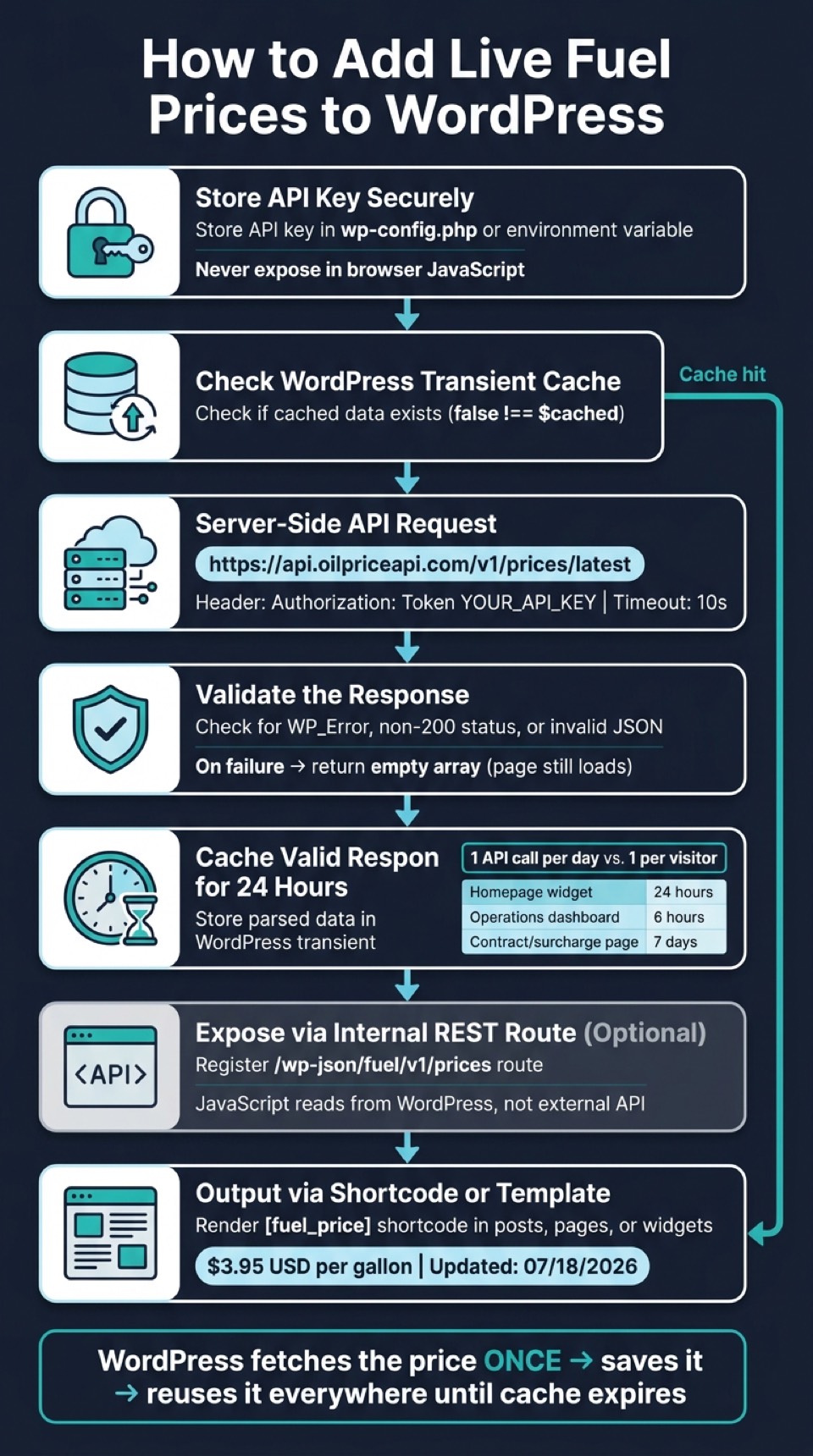
How to Add Live Fuel Prices to WordPress: Server-Side Flow
Fetch the latest fuel prices with a PHP function in WordPress

Use one helper function in a child theme or a small plugin. This allows you to integrate global oil market data directly into your site's logic. Then reuse that same function in shortcodes, templates, and widgets. That way, you have one place that handles the cached price shown across the site.
Build a reusable server-side fetch function
Here’s a minimal function that calls the API, checks the response, and returns only the fields you need:
function get_oilpriceapi_latest_prices() {
    $api_key  = defined( 'OILPRICE_API_KEY' ) ? OILPRICE_API_KEY : '';
    $endpoint = 'https://api.oilpriceapi.com/v1/prices/latest';

    $response = wp_remote_get( $endpoint, [
        'timeout' => 10,
        'headers' => [
            'Authorization' => 'Token ' . $api_key,
        ],
    ] );

    if ( is_wp_error( $response ) ) {
        return [];
    }

    if ( wp_remote_retrieve_response_code( $response ) !== 200 ) {
        return [];
    }

    $body = json_decode( wp_remote_retrieve_body( $response ), true );

    if ( ! is_array( $body ) || empty( $body['data'] ) || ! is_array( $body['data'] ) ) {
        return [];
    }

    $data = $body['data'];

    if ( ! isset( $data['price'], $data['formatted'], $data['code'], $data['currency'], $data['created_at'] ) ) {
        return [];
    }

    return [
        'price'      => $data['price'],
        'formatted'  => $data['formatted'],
        'code'       => $data['code'],
        'currency'   => $data['currency'],
        'created_at' => $data['created_at'],
    ];
}
A 10-second timeout makes sense for a live price request, and WordPress’s HTTP API deals with request failures across different hosting setups. If the request hits a WP_Error, gets a non-200 response, or returns invalid JSON, the function gives back an empty array instead. In plain English: the page can still load even if the API doesn’t cooperate.
The return value is also kept small on purpose. The next section will cache it for 24 hours, which means the site stays at one API call per day instead of hitting the endpoint on every page load.
Next, wrap this function in a 24-hour transient so the site doesn’t call the API every time someone visits a page.
Optional: use JavaScript only for display
If your front end needs to refresh a price without a full page reload, keep the API request in PHP and expose only the WordPress-ready data through an internal REST route:
add_action( 'rest_api_init', function () {
    register_rest_route( 'fuel/v1', '/prices', [
        'methods'             => 'GET',
        'callback'            => function () {
            return rest_ensure_response( get_oilpriceapi_latest_prices() );
        },
        'permission_callback' => '__return_true',
    ] );
} );
Your JavaScript can then request /wp-json/fuel/v1/prices and render the response in the UI. Think of this route as a display layer, not a second source of data. In the next step, the cache will feed that route too.
sbb-itb-a92d0a3
Cache the API response for 24 hours
If you skip caching, every page load makes a new server-side request to https://api.oilpriceapi.com/v1/prices/latest. On a busy site, that burns through quota and makes rate limits more likely. For most public fuel price embeds, a 24-hour cache is a smart default. It keeps API usage steady and cuts extra calls. That single cached response can then power shortcodes, templates, and widgets without hitting the API again.
Store the response in a WordPress transient
The setup is simple: check the cache first, then call the API only if the transient is empty or has expired. Here’s a complete helper function that stores the parsed response for 24 hours:
function get_oilpriceapi_latest_prices() {
    $transient_key = 'oilpriceapi_latest_prices_v1';
    $cached        = get_transient( $transient_key );

    if ( false !== $cached ) {
        return $cached;
    }

    $api_key  = defined( 'OILPRICE_API_KEY' ) ? OILPRICE_API_KEY : '';
    $endpoint = 'https://api.oilpriceapi.com/v1/prices/latest';

    $response = wp_remote_get( $endpoint, [
        'timeout' => 10,
        'headers' => [
            'Authorization' => 'Token ' . $api_key,
        ],
    ] );

    if ( is_wp_error( $response ) ) {
        return [];
    }

    if ( wp_remote_retrieve_response_code( $response ) !== 200 ) {
        return [];
    }

    $body = json_decode( wp_remote_retrieve_body( $response ), true );

    if ( ! is_array( $body ) || empty( $body['data'] ) || ! is_array( $body['data'] ) ) {
        return [];
    }

    $data = [
        'price'      => $body['data']['price'] ?? null,
        'formatted'  => $body['data']['formatted'] ?? null,
        'code'       => $body['data']['code'] ?? null,
        'currency'   => $body['data']['currency'] ?? null,
        'created_at' => $body['data']['created_at'] ?? null,
    ];

    set_transient( $transient_key, $data, DAY_IN_SECONDS );

    return $data;
}
Use an explicit false check so valid cached values don’t get mistaken for cache misses. Store the parsed array, and your templates can read the values right away. In practice, one cached API call can serve the whole site for a full day.
Pick a refresh schedule that fits the page purpose
A 24-hour TTL works well for most public-facing fuel price embeds. Some fuel and diesel data updates happen weekly, so it makes sense to match the TTL to the source cadence and display the returned timestamp. If you want a shorter interval, you can change the transient TTL without changing the rest of the function:
set_transient( $transient_key, $data, 6 * HOUR_IN_SECONDS ); // 6-hour refresh
| Page Type | Suggested TTL | Rationale |
|---|---|---|
| Homepage widget / location page | 24 hours (DAY_IN_SECONDS) |
Indicative daily price is sufficient |
| Internal operations dashboard | 6 hours (6 * HOUR_IN_SECONDS) |
Intraday visibility without heavy API usage |
| Fuel surcharge / contract page | 7 days (7 * DAY_IN_SECONDS) |
Matches weekly source cadence for some diesel data |
Set the TTL based on what the page is trying to do, not on the idea that newer data is always better. The same transient can also feed your internal REST route, which lets JavaScript render cached data without calling OilPriceAPI directly.
Next, use the cached value in a shortcode, template, or widget. For more help with your initial configuration, see our API integration FAQ.
Show the fuel price in pages, posts, and widgets
Add a shortcode for a simple price embed
Now that the data is cached, the next step is connecting it to a shortcode. That gives editors a simple way to place [fuel_price] in a page, post, or widget area without going back into PHP.
The shortcode callback pulls from the cached helper, formats the JSON data for U.S. readers, and returns a self-contained HTML block:
function fuel_price_shortcode( $atts ) {
    $data = get_oilpriceapi_latest_prices();

    if ( empty( $data ) || empty( $data['price'] ) ) {
        return '<div class="fuel-price-block">Fuel price unavailable.</div>';
    }

    $price   = number_format( (float) $data['price'], 2, '.', ',' );
    $updated = ! empty( $data['created_at'] )
        ? wp_date( 'm/d/Y h:i A', strtotime( $data['created_at'] ) )
        : 'Unknown';

    ob_start();
    ?>
    <div class="fuel-price-block">
        <div class="fuel-price-label">Fuel price</div>
        <div class="fuel-price-value">$<?php echo esc_html( $price ); ?> <span>USD per gallon</span></div>
        <div class="fuel-price-updated">Updated: <?php echo esc_html( $updated ); ?></div>
    </div>
    <?php
    return ob_get_clean();
}
add_shortcode( 'fuel_price', 'fuel_price_shortcode' );
This code uses en-US formatting for dollar amounts and MM/DD/YYYY dates. You can place the shortcode in:
- Posts
- Pages
- Shortcode blocks
- Widget areas
That same cached source can also render directly in theme templates.
Reuse the same data in templates or a custom block
The shortcode works well for editors. If you're working in theme files, you can call get_oilpriceapi_latest_prices() directly anywhere you need the data.
For example, you can drop this into a template part like template-parts/fuel-price.php, then include it where the layout should show the price:
$data = get_oilpriceapi_latest_prices();

if ( ! empty( $data['price'] ) ) {
    $price   = number_format( (float) $data['price'], 2, '.', ',' );
    $updated = ! empty( $data['created_at'] )
        ? wp_date( 'm/d/Y h:i A', strtotime( $data['created_at'] ) )
        : 'Unknown';
    ?>
    <section class="fuel-price-panel">
        <h2>Fuel price</h2>
        <p class="fuel-price-amount">$<?php echo esc_html( $price ); ?> <span>USD per gallon</span></p>
        <p class="fuel-price-meta">Updated: <?php echo esc_html( $updated ); ?></p>
Verify the output, fix common issues, and wrap up
Confirm that caching and refresh behavior work correctly
Once you add the shortcode or template output, make sure the cached price shows up as expected.
A simple way to test it is to walk through caching in this order:
- Clear the transient
- Load the page once so it fetches live data
- Reload right away to confirm a cache hit
- In a test setup, shorten the TTL and check that the value refreshes after it expires
Your code should treat this as a cache miss:
false === get_transient( 'oilpriceapi_latest_prices_v1' )
When that happens, it should make a live request to:
GET https://api.oilpriceapi.com/v1/prices/latest
Then it should store the response. On the next reload, the page should show the price from the cached transient without making another API request.
One small but important detail: transient expiration is a maximum age, not a promise. An object cache or cache flush can remove it early. So if the transient is missing, your fetch function needs to rebuild it every time.
If the reload test doesn't work, use the table below to narrow things down fast.
Fix common problems: auth errors, empty output, and stale values
Here are the issues that show up most often:
| Symptom | Likely cause | Fix |
|---|---|---|
401 Unauthorized |
Wrong header format or inactive key | Confirm the header is exactly Authorization: Token YOUR_API_KEY and that the key is active. |
| Empty page output | Incorrect endpoint path or failed decode | Verify the request is going to https://api.oilpriceapi.com/v1/prices/latest and that the response is decoded correctly in PHP. |
| Stale output | Stale transient or page-level HTML cache | Clear the transient with delete_transient( 'oilpriceapi_latest_prices_v1' ) and reload to force a fresh fetch. |
If the page is still blank after fixing the header and endpoint, log the HTTP response body before storing anything. That step often saves a lot of guesswork.
Also, don't cache error payloads as if they were valid data. Only call set_transient() when the request succeeds and returns the data your template expects. For the exact response structure and error details, check the API documentation.
Other OilPriceAPI tutorials for different workflows
If your team wants to use the same data in spreadsheets or scripts, these guides cover the API in other setups:
- Excel: How to get oil prices in Excel
- Google Sheets: How to get oil prices in Google Sheets
- Python: Python oil price API tutorial
- Node.js: Node.js oil price API tutorial
Get a free API key at OilPriceAPI.
FAQs
Where should I store my API key in WordPress?
Never hardcode your API key in your theme or plugin files. Put it in environment variables on your server instead, so it doesn’t end up exposed in your source code or version control.
Also, make API calls server-side. That keeps the key out of the browser, and caching can help cut down on repeat requests at the same time. For development, use a separate API key from a secondary account. That way, you can rotate it without touching production.
How do I clear or refresh the cached fuel price?
Clear or refresh cached fuel prices in your own WordPress server-side logic, not through the API. OilPriceAPI is a REST service, and it does not include an endpoint to clear a remote cache.
Instead, update the TTL or expiration logic in your local PHP code so a new request runs when the cache expires. If you're using the official SDK, adjust its built-in caching and storage settings to match how often you want data to refresh.
Can I show the same cached price in multiple places?
Check your plan's display terms first. Where public display is allowed, fetch the price once, cache it, and reuse the cached value in each placement.
The idea is simple: make one server-side API call, save the result in a local cache, and reuse that same value across pages, widgets, or other sections of your site. That way, you don't send the same request over and over again for no good reason.
This keeps your site fast and helps you use your API more efficiently.